Installation: MySQL
Lesson opener
In one line: Install MySQL Server and Workbench; load lab CSVs into database learnings_lab.
Why it matters: This shows up at work when you need to install MySQL Server and Workbench; load lab CSVs into database learnings_lab..
Before this lesson: Anaconda install
Before you start
| Resource | Link |
|---|---|
| customers.csv | customers.csv |
| sales.csv | sales.csv |
| Previous | Anaconda install |
| Next | PostgreSQL & pgAdmin |
What you will learn
Install MySQL Server and Workbench; load lab CSVs into database learnings_lab.
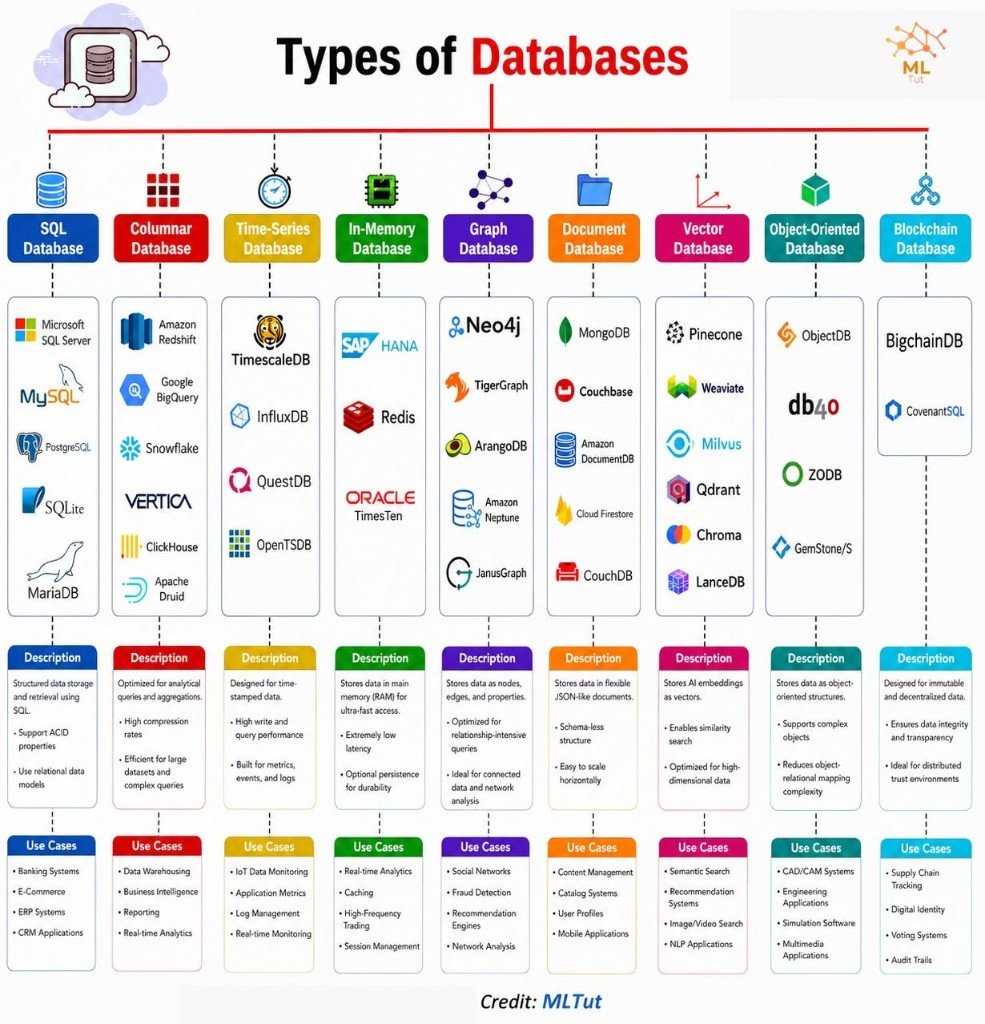
Tutorial 1 — Install MySQL
- Download MySQL Installer (Community Server + Workbench).
- Choose Developer Default or Server + Workbench only.
- Set root password — store in a local file (never commit to git).
Tutorial 2 — Create database
Open MySQL Workbench → connect as root:
Create and select the lab database
Without a dedicated database, your practice tables land in mysql system space or the wrong schema — messy and easy to delete by mistake.
Use this when you are setting up the learning lab for the first time on a fresh MySQL install.
CREATE DATABASE IF NOT EXISTS learnings_lab;
USE learnings_lab;
Breaking it down:
CREATE DATABASE IF NOT EXISTS learnings_lab→ make the lab database only if it is not already thereUSE learnings_lab→ point all following commands at that database
Use this when: First day of SQL practice — one home for customers and sales instead of mixing them into test.
Tutorial 3 — Import CSV tables
- Workbench → Server → Data Import.
- Import customers.csv → table
customers. - Import sales.csv → table
sales. - Or: Table right-click → Table Data Import Wizard.
Verify:
Row count check after import
A failed CSV import can leave an empty table with no obvious error — you only notice when every query returns zero rows.
Use this when you have just imported customers.csv and sales.csv and need proof the data actually landed.
SELECT COUNT(*) FROM customers;
SELECT COUNT(*) FROM sales;
Breaking it down:
SELECT COUNT(*)→ count every row in the tableFROM customers/FROM sales→ which table you are checking
Use this when: Go-live check before starting SQL basics — if either count is 0, re-import before you waste an hour debugging empty results.
Tutorial 4 — First queries
Segment headcount
You need to know how many customers sit in each tier — not just scroll the raw table until your eyes glaze over.
Use this when your manager asks “how many Gold vs Silver customers do we have?” on day one of SQL practice.
SELECT segment, COUNT(*) AS n
FROM customers
GROUP BY segment
ORDER BY n DESC;
Breaking it down:
SELECT segment, COUNT(*) AS n→ show each segment and how many rows belong to itFROM customers→ source tableGROUP BY segment→ one result row per distinct segmentORDER BY n DESC→ largest segment first
Use this when: Sanity-checking imported customer data — if a segment count looks impossible, the CSV or column mapping is wrong.
Save scripts under exercises/answers/sql/ as you learn in SQL track.
Security note
Do not commit passwords, .env, or connection strings. Use Workbench stored connections locally only.
Essential commands
| Command / action | What it does |
|---|---|
CREATE DATABASE learnings_lab; | Creates the practice database. |
USE learnings_lab; | Selects the database for following statements. |
DESCRIBE customers; | Shows column names and types for a table. |
SELECT * FROM table LIMIT 10; | Preview rows without loading entire table. |
Server → Data Import | Workbench wizard to load CSV into a table. |
Practice
Do this now: Create learnings_lab, import customers and sales, run the segment COUNT query.
Teacher walkthrough: server up, then client
All figures illustrative.
Step 1 — Install MySQL server; set root password; store it in your password manager (not in git).
Step 2 — Prove the service is running (Windows Services / mysqladmin ping as taught).
Step 3 — Connect with Workbench or CLI; create the lab database/user per lesson.
Step 4 — Run a trivial SELECT 1 before importing course data.
Failure example: Workbench cannot connect
Symptom: "Can't connect to MySQL server on localhost".
Diagnosis: Service stopped, wrong port, or wrong password — not "SQL is broken".
Correction: Start service; verify port 3306; reset local password only via official docs if needed.
Validation: Client session shows SELECT 1 → 1.
Guided practice
Name three things to check before reinstalling MySQL.
Complete solution: Service running; host/port; credentials — then firewall/socket — reinstall last.
Independent practice
Acceptance criteria:
- Server running locally (or approved sandbox).
- Client connects with documented credentials storage method.
- Lab database created.
- One successful
SELECT 1screenshot or note.
Common mistakes
- Committing passwords in notes pushed to GitHub.
- Reinstalling before checking the Windows service.
- Using production credentials on a learning laptop.
Checklist
- [ ] Workbench connects to localhost
- [ ] Both tables have rows
- [ ] Sample GROUP BY runs
- [ ] Ready for SQL basics